

The “Bad System Config Info” error is a common and frustrating Blue Screen of Death (BSOD) issue on Windows 10 or 11 computers. This error can be alarming, as it often appears unexpectedly, interrupting your work or gaming session. It can even result in the loss of unsaved progress due to the system crash. Several factors can cause this error, including issues with registry files, corrupted system files, or damaged Boot Configuration Data (BCD). In some cases, the error might also be due to faulty hardware or an improper hardware upgrade.
If the error has only occurred due to a temporary glitch, simply restarting your PC might fix it. However, if the error persists or prevents you from getting past the boot screen, you may need to address the underlying issue. This guide will walk you through several effective steps for fixing the error and restoring your Windows PC to optimal performance.
Check the hardware and run the Windows Memory Diagnostic tool

The “Bad System Config Info” error can sometimes occur due to hardware-related issues. So, if you have recently replaced the hard drive, RAM, or any other component, ensure that everything is connected properly. Additionally, you should run the Windows Memory Diagnostic tool to check your system for memory-related problems. Since this process requires a system reboot, make sure to save all your work before proceeding.
To run the Windows Memory Diagnostic tool:
1. Press Windows + S to open the search menu.
2. Type Windows Memory Diagnostic in the text field and press Enter.
3. Select the “Restart now and check for problems” option. Your computer will now reboot, and the
4. Windows Memory Diagnostic tool will run some tests.
Once the tests are complete, your PC will restart, and the results will be displayed upon login. The diagnostic tool will notify you if any errors are found. You may need to replace or install additional RAM on your computer if needed.
Run SFC, DISM, and CHKDSK scans
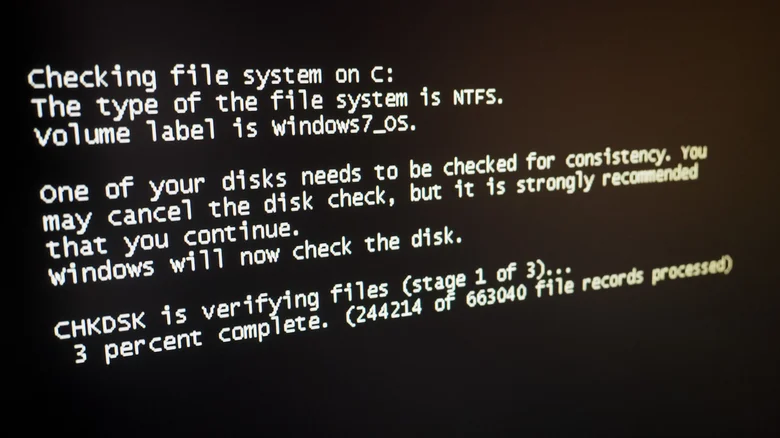
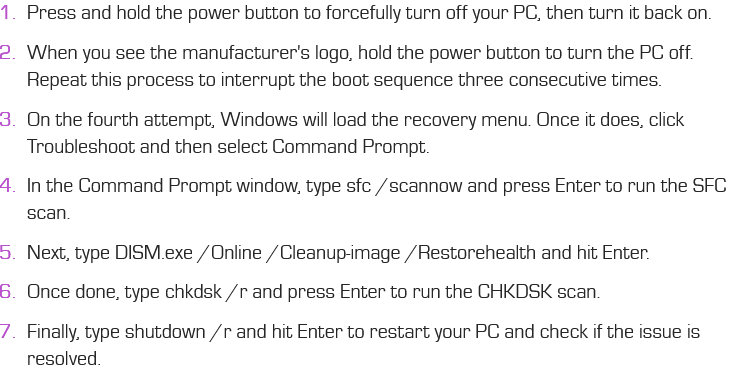
Corrupted system files and disk-related issues can also lead to the “Bad System Config Info” error on your PC. Fortunately, Windows includes a few handy tools like the System File Checker (SFC) and Deployment Image Servicing and Management (DISM) that can help you find and repair damaged system files. Additionally, you should run a check disk scan to identify and fix any bad sectors on the primary drive. To do so, follow these steps:
Repair Windows boot configuration data

The Boot Configuration Data (BCD) is crucial for the Windows operating system, as it dictates how the system should boot. If the BCD file on your PC is corrupted or damaged, it may prevent Windows from booting properly, resulting in the “Bad System Config Info” error. To fix this issue, you can try repairing the BCD file using these steps:

Perform a system restore

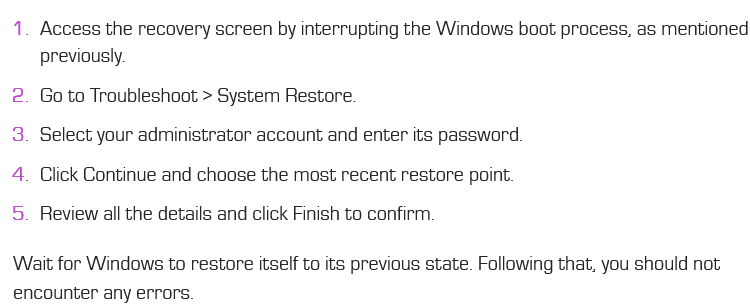
If you continue to encounter the “Bad System Config Info” error, there may be an issue with your PC’s registry files or some recent system-level changes may have caused the problem. If the error has started appearing recently, performing a system restore might help. System Restore is a handy feature in Windows that allows you to revert your computer to a previous state. This can help you revert any bad changes that might have caused the error, such as faulty driver installations, software updates, or alterations in system settings.
To perform a system restore on Windows:






%20issue%20on%20Windows%2010%20or%2011%20computers.%20This%20error%20can%20be%20alarming,%20as%20it%20often%20appears%20unexpectedly,%20interrupting%20your%20work%20or%20gaming%20session.%20It%20can%20even%20result%20in%20the%20loss%20of%20unsaved%20progress%20due%20to%20the%20system%20crash.%20Several%20%5B…%5D&media=https://nexcel.me/wp-content/uploads/2024/08/image-cover-for-windows-configuration-1.webp)